
Using the Inbox
The Inbox is where you read your customer conversations and reply yourself when you need to. Most of the time you won't need it — Costello answers messages automatically. The Inbox is there for the moments when you want to keep an eye on things, or when Costello hands a conversation over for a human to take.
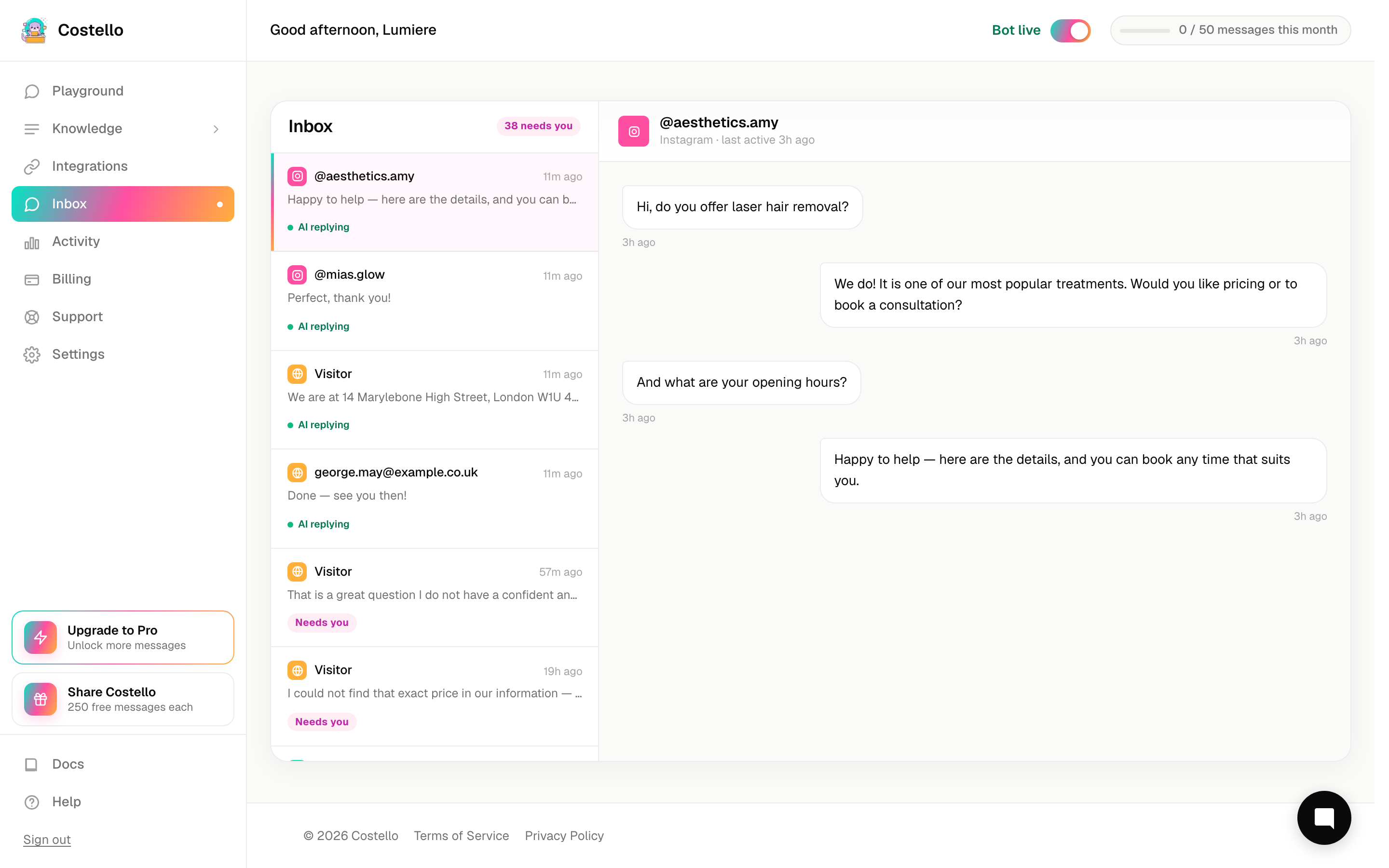
Open Inbox in the left-hand menu to find it. Conversations from every channel — Instagram, Messenger, and web chat — arrive here together, and the page updates in real time as new messages come in.
How the Inbox and Costello work together
Think of Costello as your front-of-house receptionist and the Inbox as your view over its shoulder.
- Costello answers the vast majority of messages on its own, day and night.
- When it can't answer, or a customer asks for a person, it escalates the conversation — flagging it in the Inbox so you can step in.
- You can also jump into any conversation yourself, whether or not it was escalated.
When something needs your attention — a new escalation or an unread message — a small dot appears next to Inbox in the left-hand menu. It's your cue to take a look. When everything's handled, the dot disappears.
Finding the right conversation
The left side of the Inbox is your conversation list. Each entry shows a preview of the latest message so you can scan quickly. You'll also see:
- Unread badges on conversations with messages you haven't seen.
- Escalation indicators marking conversations Costello has handed over.
To narrow the list, use the search box to find a customer by name or message, and the filters to focus on, say, only escalated or only unread conversations.
Reading a conversation
Click any conversation to open it in the detail panel on the right. Here you'll see:
- The full message thread, in order, between the customer and Costello.
- The channel it came in on (Instagram, Messenger, or web chat).
- The customer's email or phone, if they shared it during the chat.
- The escalation reason, if Costello handed the conversation over.
Replying yourself
When you want to take over, type your message in the reply box at the bottom of the detail panel and send. Your reply goes straight back to the customer on the same channel they messaged from — they won't notice the handover, it simply looks like one continued conversation.
Click it in the list. Escalated ones are flagged, so they're easy to spot.
See what the customer asked and why Costello flagged it, so you know what they need.
Type your message and send. It reaches the customer on their original channel.
Once it's handled, mark it as closed so it drops off your active list.
Closing and resolving
When a conversation is done, use the close / resolve action to tidy it away. This clears its unread badge and keeps your list focused on what still needs attention. The conversation isn't deleted — you can still find it later, and it remains part of your record in Activity.
A quick daily glance at the Inbox is usually all it takes. Look for the dot, clear any escalations, and you'll never leave a customer waiting.