
Web chat widget settings
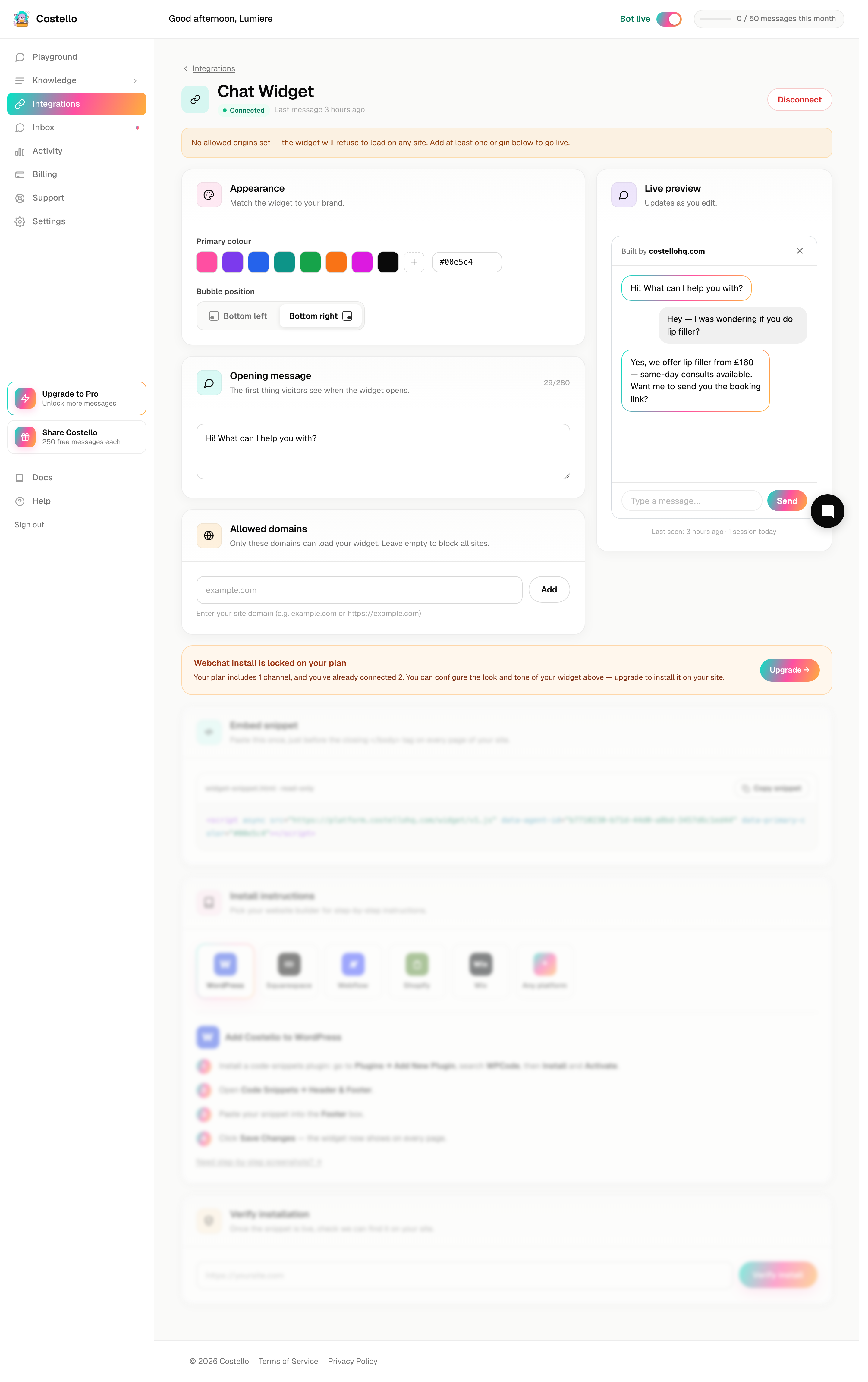
Everything about how your web chat bubble looks and behaves is controlled from one place: Integrations → Web chat. This is your settings reference for every option on that page.
The best part: appearance changes apply instantly on your live site. You never need to re-paste the embed snippet after a change.
Before you start
You'll need the web chat widget set up in Costello. If you haven't installed it yet, start with Embed web chat for the overview, then follow the install guides for your website platform.
To open the settings, go to Integrations in the left nav and open the Web chat card.
The settings, one by one
A simple on/off switch. When it's off, the bubble disappears from your site straight away — handy if you want to pause web chat without removing the snippet.
Choose from the preset swatches, or click the custom option and paste your own hex code (for example, #1F8A70) to match your brand exactly. The bubble, header, and buttons all pick up this colour.
The first line a visitor sees when the chat opens — for example, "Hi! How can we help today?". Keep it short and friendly. The limit is 280 characters.
Pick whether the bubble sits in the bottom-right or bottom-left corner of your pages. Choose the side that won't clash with other on-screen buttons.
A whitelist of the websites allowed to show your widget. See the section below for what this is for.
As you change the colour, opening message, or position, the live preview on the same page updates immediately so you can see exactly what visitors will see — before anything goes live.
What "allowed domains" is for
Allowed domains is a security and anti-abuse feature. It's a list of the websites that are permitted to display your chat widget. If your embed snippet ever ends up on a site that isn't on your list, the widget simply won't load there.
This protects you in two ways:
- It stops anyone who copies your snippet from running your chat (and using your message allowance) on a site you don't control.
- It keeps your conversations tied to your real website, so the Activity you see is genuinely from your visitors.
You can add up to 20 domains — enough for your main site plus any landing pages, staging sites, or extra brands. Add each domain on its own (for example, yourclinic.com), and remember to include any subdomains you use, such as book.yourclinic.com.
If your website isn't on the allowed list, the widget won't appear — even with the snippet installed correctly. This is the most common reason a freshly installed bubble doesn't show up.
Copying the snippet
The Copy embed snippet button gives you the <script> block to paste into your website. You only need to do this once per site. For step-by-step instructions per platform, see the install guides.
Verifying your install
After you've pasted the snippet and published your site, click Verify install. Costello checks that the snippet is actually live on your domain and reports back. A green result means you're all set; a failure usually points to a missing snippet or a domain that isn't on your allowed list.
Disconnecting
The Disconnect button removes the web chat connection. You'll be asked to confirm first, since this frees up the channel slot and stops the widget working on your site. You can always set it up again later.